|

|
Link Editor—General InformationWith a Search by Word page, Search for Publication page, or an article displayed, click Modify Link to access the Link Editor. The following sections describe Link Editor fields that are always present. After making any of the modifications described
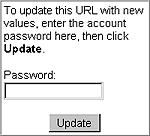
in the following sections, always type the ProQuest Direct account password for your
current session in the Password field and click Update
in this box on the Link Editor page. Account InformationThe account name is a unique alphanumeric string. When you insert a ProQuest Direct link into your page, embedded in that link will be an account name, which along with the embedded password eliminates the need for your users to login to ProQuest Direct. They will see only those ProQuest Direct pages that you want them to see. If the account name is the same as the one that you want users to access ProQuest Direct with, leave it. If not, type the different account name. This password must match the password for your ProQuest Direct Account Name. If the passwords do not match, the link will not work. Access ControlThe date displayed in this field reflects the last day that this link will work. If you want to provide access for a shorter time, specify an earlier date to shorten the lifespan of the link. The date you specify must fall on or before 07-01-2003. Restrict use to these IP Addresses Every workstation on a network has a unique, identifying IP (internet protocol) address. If you want to make the current link available from specific workstations only, type their IP addresses in the text scroll box. Tip1: If you want to password-protect the link, type the password here. The link password is not the same as the account password.
|